


Candy AI: Create Anything
3.544.00 Reviews
App Specs
- Version
- 1.7.3
- Updated On
- License
- Free
- Downloads
- 50,000+
- Developer
- Candy Studio Apps
- Categories
- Art & Design
- Platform
- Android
Screenshots
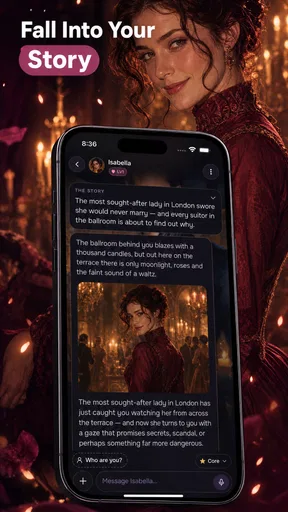


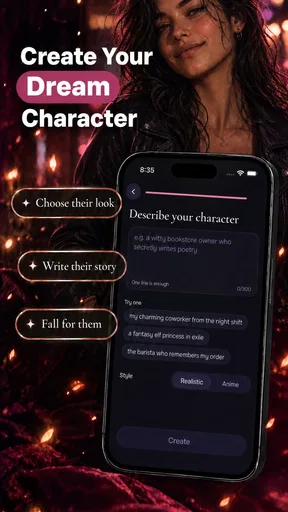

 Analysis by AppCompare
When I assess an AI creation app, I look beyond the promise of impressive results and ask a more practical question: do I understand what I’m choosing to make, and do I feel in control while doing it? Candy AI: Create Anything caught my attention as an art and design app, but I’d approach it as a place to experiment rather than a dependable professional studio. That distinction matters if you plan to use personal photos, publish finished work, or expect every result to be ready on the first try.
Why I’d start with a low-stakes project
My first recommendation is to test the creative process with an idea that does not involve private material or an important deadline. Make a playful visual for a chat, try a concept for a personal project, or explore a style you would not normally attempt. This lets you judge whether the app’s results suit you before you invest time in a larger piece or decide whether any optional purchase feels worthwhile.
That cautious approach is especially useful with AI-assisted creation. A prompt or starting image can lead somewhere unexpected, and a result that looks appealing at a glance may still need careful editing before it works in a finished design. I would treat early outputs as drafts: compare several directions, keep the one that communicates your idea, and be ready to refine it elsewhere if the details matter.
Who may enjoy it, and who may not
I can see the appeal for casual creators who want to explore visual ideas without first learning a complex design program. It may also suit someone looking for a quick creative break: a small personal project can be a more inviting starting point than opening a desktop editor full of unfamiliar controls. The important question is whether the app’s actual workflow feels comfortable to you, not whether its broad creative promise sounds exciting.
I would be more hesitant to recommend it as the only tool for client work, precise layout, or a project that must meet strict technical requirements. People who need predictable editing controls, repeatable results, or a detailed production pipeline are usually better served by a dedicated art or design editor. AI can help generate ideas, but it does not remove the need to check composition, legibility, consistency, and suitability for the intended audience.
A practical way to judge the results
For a realistic everyday test, imagine wanting a fresh visual for a message or a small social post during a spare moment. I would begin with a simple subject and a clear purpose, then assess the output at the size where people will actually see it. If a face, object, or key detail is distorted, the image may be fun as an experiment but not right for sharing as-is. That quick check prevents the novelty of generation from overshadowing whether the work is useful.
Another helpful habit is to change one part of an idea at a time. If you alter the subject, style, mood, and composition all at once, it becomes difficult to tell which change improved the result. Keeping a short note of what you tried can make experimentation less random and help you return to a direction you liked. This is a small workflow choice, but it can save time when you are learning how an AI tool responds.
Worth Reading Before You Choose

EA SPORTS FC Mobile 26 Is a Bigger Football Game, but It Takes Time

Flipboard Shows What News Apps Must Do Beyond the Feed

Switching to Android Auto Means Rethinking Your Driving Routine

Google Calendar Makes a Crowded Week Easier to Manage

Ludo King Makes the Most of the Minutes Between Plans

Baby Panda World Brings Quick Play to Modern Phones, but Its Game Library Feels Busy
How it fits beside other creative apps
Compared with a conventional drawing app, an AI-focused creation tool can be a quicker way to explore a visual direction, while a traditional editor generally gives the artist more direct control over individual marks and finishing details. Compared with a general-purpose design suite, a lighter creative app may feel less intimidating, but it may not offer the same precision for layered layouts or production-ready assets. I would use Candy AI for exploration only if its available tools match the task, then move to a specialist editor when accuracy and fine control become more important.
There is also a meaningful difference between trying an idea and owning a finished workflow. Before using a result in a public or commercial setting, I would inspect the export carefully and make sure it fits the platform, audience, and requirements of the project. I would not assume that a visually polished result automatically needs no further review. That extra check is worthwhile for any AI-assisted artwork, especially when the output represents a person, business, or sensitive subject.
Trust, choices, and sensible boundaries
Because creative prompts and images can be personal, I recommend thinking before submitting anything you would not want to use in an online service. Keep early tests generic, avoid including identifying details in a prompt, and use a non-sensitive source image if you are testing an image-based workflow. These are prudent habits, not a claim about how the app handles data; they simply give you more control over what you choose to share while you evaluate it.
I also make a point of checking the app’s visible settings and choices myself rather than assuming that an AI tool works like another app I have used. Review the options presented during setup and while using the product, and pause before accepting a choice you do not understand. If you are helping a teenager try it, make that a shared check-in: the content rating is Teen, and a conversation about what to upload and what to publish is more useful than relying on an age label alone.
The app is free to install, though it includes in-app purchases priced from $6.99 to $69.99 per item. I would explore the free experience first and consider a purchase only after I knew which part of the workflow I actually wanted to continue using. Candy Studio Apps develops it, and its 3.4 average from 447 ratings, alongside 42 written reviews, suggests a mixed reception rather than a clear consensus. Its 50K+ installs indicate that people are trying it, but popularity alone does not tell me whether it will suit my creative habits.
The Sweet Spot of Creativity
When I first stumbled upon Candy AI: Create Anything, I was intrigued by its promise to let users craft almost anything they can imagine. The app markets itself as a digital playground, where users can explore and bring their imaginative ideas to life. From digital art to animated designs, the possibilities seemed endless. The app's user interface is intuitive, making it accessible for both beginners and seasoned creators.
Getting Started
Upon opening the app, you're greeted with a vibrant and user-friendly dashboard. The layout is clean, and navigation is straightforward, which is always a plus in my book. The app offers a quick tutorial to get you familiar with its features. I found this helpful, especially since it highlights how to access different tools and functions within the app efficiently.
One of the first things I noticed was the range of templates available. Whether you're looking to create a digital painting, a 3D model, or an animated GIF, Candy AI has got you covered. The templates are a great starting point, especially if you're like me and sometimes need a little nudge to get those creative juices flowing.
Features That Pop
The app shines in its variety of features. Its AI-driven tools are designed to assist rather than take over, which I appreciate as it allows for genuine creativity. The drawing tools are robust, offering a spectrum of brushes and colors. I spent a good chunk of time experimenting with the 3D modeling feature, which, to my delight, was both powerful and easy to use. There's something incredibly satisfying about watching your 2D sketches transform into 3D models with just a few taps.
Another standout feature is the animation tool. Creating animations can often be daunting, but Candy AI simplifies the process with its intuitive timeline and keyframe system. I was able to create a short animation in no time, and the sense of accomplishment was fantastic!
Sharing the Magic
Once you've crafted your masterpiece, sharing it with the world is a breeze. The app supports direct uploads to various social media platforms, which is perfect for showcasing your work to friends or followers. The export options are flexible, allowing you to choose between different file formats and resolutions. This versatility is great, especially if you're planning to use your creations in professional projects.
Room for Improvement
While Candy AI: Create Anything has a lot going for it, there's always room for improvement. During my exploration, I noticed that the app can occasionally lag, especially when working with more complex 3D models. It's not a deal-breaker, but something to keep in mind if you're working on a deadline. Additionally, while the app is generally user-friendly, some advanced features could benefit from more detailed tutorials or tooltips.
What I’d check before sharing
Even when an export looks finished on the phone, I would preview it at its intended size and on the platform where I plan to use it. A detail that seems clear in an editing view may become hard to read in a small thumbnail, while motion that feels smooth during playback may not communicate well without context. For a casual post, that may be a minor annoyance; for a presentation or a commissioned piece, it is a reason to inspect the file in a separate viewer before sending it on.
I would also keep an original version of anything I intend to refine. That gives me room to compare an AI-assisted result with later edits and avoid treating the first attractive output as the only possible direction. If I am making a set of related images, checking them side by side is more useful than judging each one alone: differences in color, style, or proportions can stand out only when the pieces are viewed together.
Practical limits to keep in mind
My main reservation is not that experimentation can produce imperfect work—that is part of the process—but that broad creative expectations can outrun what any one mobile app can reliably deliver. A tool that feels enjoyable for a quick idea may still be the wrong choice when a project needs exact dimensions, careful retouching, or consistent assets across several formats. I would decide on the required finish before I begin, so I know when to stop experimenting and switch to a more controlled editor.
It is also worth separating ease of access from ease of mastery. A friendly first screen can make it simple to begin, but more involved work still benefits from patience and a clear plan. If you find yourself repeatedly adjusting a result without getting closer to the intended look, step back and simplify the brief rather than adding more instructions at random. That is a useful way to avoid spending time—and potentially money—on a workflow that is not matching your needs.
Version, cost, and fit
The current version is 1.7.3, and the app requires Android 9 or later. I would check compatibility on the device I plan to use before building a project around it. It is free to start, but the in-app purchase range makes it sensible to treat paid options as a decision to make after testing, not as an automatic next step. The right question is whether a particular purchase supports a task I will genuinely repeat.
For someone who simply wants to try AI-assisted art, the low-commitment route is to begin with a small, non-sensitive concept, judge the result honestly, and see whether the controls encourage further exploration. For someone working to a firm brief, I would first confirm that the available workflow can meet the brief without awkward workarounds. If not, using a dedicated editor from the outset is likely to be calmer and more efficient.
Final Thoughts
All in all, Candy AI: Create Anything is a delightful app that offers a sweet mix of creativity and functionality. Whether you're a hobbyist looking to explore new creative avenues or a professional seeking a tool to enhance your projects, this app is worth a try. It’s a vibrant, fun, and versatile addition to the digital creator’s toolkit. If you're ready to unleash your creativity and have some fun along the way, give Candy AI a whirl—you might just find it’s the creative outlet you didn’t know you needed.
My more cautious recommendation is to try it for inspiration and personal experiments, then make a separate judgement about whether its tools and purchase options fit your ongoing work. I would not choose it blindly for a deadline-sensitive or privacy-sensitive project, and I would review each output before publishing it. If that balance sounds right to you, Candy AI may be an enjoyable way to test ideas; if you need dependable precision above all, a specialist art or design app is the safer fit.
Pros
- Easy-to-use interface for all users.
- Wide range of creative tools available.
- Seamless integration with social media.
- Regular updates with new features.
- Supports high-resolution outputs.
Cons
- Requires a stable internet connection.
- Some features locked behind paywall.
- Can be resource-intensive on older devices.
- Occasional ads can interrupt workflow.
- Limited offline functionality.
FAQs for Candy AI: Create Anything
What platforms is Candy AI: Create Anything available on?
Candy AI: Create Anything is available for both Android and iOS devices. You can download it from the Google Play Store for Android or the Apple App Store for iOS. Ensure your device meets the necessary system requirements for optimal performance.
Does Candy AI: Create Anything require an internet connection?
While some features of Candy AI: Create Anything can be used offline, an internet connection is required for certain functionalities. This includes accessing cloud-based tools, downloading resources, and sharing your creations online. For the best experience, a stable internet connection is recommended.
Is Candy AI: Create Anything suitable for children?
Candy AI: Create Anything is designed to be user-friendly and is suitable for users of all ages. However, parental guidance is advised for younger children to ensure appropriate use of the app, especially when interacting with online features or making in-app purchases.
Are there in-app purchases within Candy AI: Create Anything?
Yes, Candy AI: Create Anything offers in-app purchases. These may include additional tools, resources, or enhanced features to expand your creative possibilities. Users should be aware of these optional purchases and manage their settings accordingly to avoid unintended expenses.
How can I share my creations from Candy AI: Create Anything?
Sharing your masterpieces is easy with Candy AI: Create Anything. The app provides direct sharing options to social media platforms, email, and other messaging apps. You can also save your creations to your device gallery for later use or printing. Ensure you have the necessary permissions to share content online.


